crm assistfor Salesforce
Step-by-step guide · Salesforce
Let Claude update Salesforce for you: the risks first, then how
Hate CRM admin and want Claude to do it? You can, but a wrong write is worse than a missed one. Here are the risks, the vendor-documented way to connect Claude directly, and where CRM Assist is a simpler and cheaper fit.
Try CRM Assist freeShow me the steps
- 6 steps
- 7 min read
- 14-day free trial, no card
- Updated 31 October 2026
✓ Saved to Salesforce
Anthropic offers a Salesforce plugin for Claude. It lets Claude read your Salesforce data and propose changes, working as you: Claude sees only what your own Salesforce permissions allow. The setup below follows Anthropic's help page for organisations. It is a beta, so details can change.
Read this first: the risks of letting an AI write to your CRM
An AI that can only read your CRM is low risk. One that can write is different, because a wrong edit looks exactly like a right one until someone relies on it. These are general risks of any AI with write access, not statistics about any product.
- It changes the wrong record. Two deals called "Northwind renewal" are easy to mix up. Reduce it: check the record name and owner on every change it shows you.
- It overwrites something good. A field you meant to add to gets replaced. Reduce it: ask for the old value and the new value side by side.
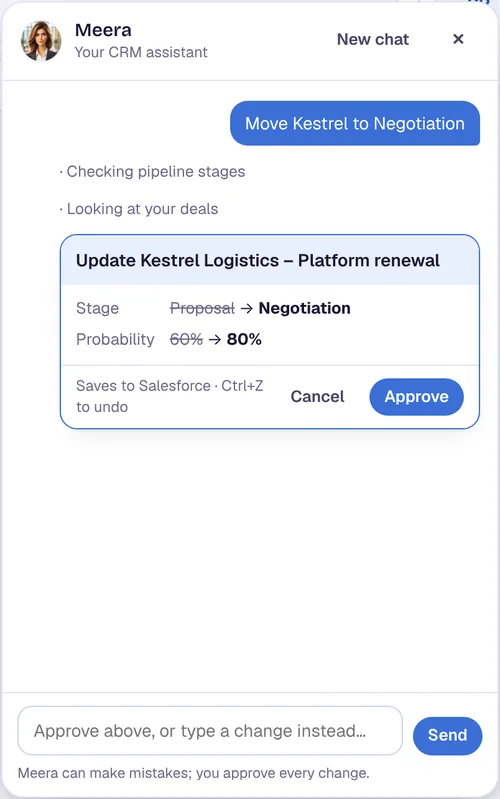
- It guesses. Told "move Kestrel forward", it may invent a stage, amount or close date. Reduce it: say the exact value, and read the change before you approve.
- It can do whatever your login can do. If you can edit it, so can the AI. Reduce it: keep approval on for every write and start with one record.
- Mistakes look like you. The Salesforce record shows your name, not "the AI's". Reduce it: know how to find who changed what, and how to put it back.
- Your CRM text goes to an AI provider. Some companies forbid this, and an admin may block the connection. Reduce it: ask your admin first.
- Text inside the CRM can carry instructions. A pasted email or note may contain lines meant to steer the AI. Reduce it: never approve a change you did not ask for.
Before you start
- The latest Sales Cloud Enterprise edition, according to Anthropic's page. Other editions are not eligible for the beta.
- Approval from Salesforce. Your organisation has to be accepted into the beta through Salesforce's AgentExchange.
- A Salesforce admin and a Claude admin. The Claude side needs a Primary Owner or Owner of the Claude organisation.
- A paid Claude plan. Anthropic says the beta is on all paid plans, for approved organisations only. We did not find a price on the page, so check Anthropic's pricing.
The steps
Check you qualify
Confirm with your Salesforce admin that you are on the latest Sales Cloud Enterprise edition and that your company is willing to share CRM data with Claude. If not, stop here: the direct route is not open to you yet.
Watch out. If your company blocks AI tools, ask before you start. Company policy can block the connector sign-in, even for a single user.
Salesforce admin requests access
Your Salesforce admin requests plugin access through AgentExchange and waits for Salesforce's acceptance email. The remaining setup instructions arrive in that email.
Turn on the Salesforce MCP server
The admin follows the instructions in the acceptance email and turns on the Salesforce MCP server using Salesforce's setup guide. They then send the Claude admin the consumer key and consumer secret of the External Client App.
Tip. The consumer secret is a credential. The admin should send it through your company's approved channel, not by plain email or chat.
Claude admin adds the connector
The Claude admin goes to Organization settings > Plugins, finds Salesforce Marketplace and sets an install preference per group: Installed by default, Available to install, or Required. Then, under Organization settings > Connectors, they select Salesforce (Beta), enter the consumer key as the OAuth client ID and the secret as the OAuth client secret, and save.
Sign in as yourself
Turn the plugin on, sign in to Salesforce with your own account the first time, and finish the plugin's first-run setup, which learns your role and your book of business.
Make one safe change first
Ask for one small change on one record you know, for example a next step on a test opportunity. By default Claude asks for your approval before writing. Read what it shows, approve it, then open the record in Salesforce and check it.
Tip. Keep approval on. Do not move to bulk changes until a few single changes have come out exactly right.
Connecting Claude yourself, as one person
The plugin above is for organisations. If you are one person with your own Claude account, the other documented route is Salesforce's hosted MCP servers. It still needs a Salesforce admin once, because the connection goes through an External Client App that only an admin can create. After that you connect from your own Claude.
An admin turns on the servers and creates the app
In Setup the admin opens MCP Servers > Salesforce Servers, activates the server you need and copies its Server URL and API Name. In External Client App Manager they create an app with OAuth switched on, the scopes
refresh_token, offline_accessandmcp_api, and PKCE required. Salesforce's article also has them untick the two "Require secret" options and issue JWT-based tokens. They give you the Consumer Key (and the secret, if your route needs it).Tip. Try it in a sandbox or developer org before production.
Claude Code: add the server and sign in
Salesforce documents a single command with your server name, URL and the consumer key, which then asks for the secret:
claude mcp add --transport http <server-name> <server-url> --callback-port 38000 --client-id "<consumer-key>" --client-secretThen start
claude, run/mcp, pick the server, choose Authenticate and allow access.Claude Desktop or the web app: add a custom connector
Anthropic's custom-connector steps are: Customize > Connectors > + Add > Add custom connector, enter a name and the server URL, choose the sign-in option, and add the OAuth client details. Salesforce's article says the admin should use the callback URL
https://claude.ai/api/mcp/auth_callbackfor Claude Desktop, but it points to Salesforce's own docs for the Desktop steps. We did not verify this route end to end, so follow Salesforce's docs for the exact fields.
Salesforce says standard user permissions still apply on top of the app's access checks, and recommends a human checks data before bulk actions. The source did not state which Salesforce editions or Claude plans are required. Anthropic says custom connectors work on Free, Pro, Max, Team and Enterprise, with Free limited to one, and that on Team and Enterprise only certain admins can add one for the organisation.
Extra risks when you connect it on your own
- Custom connectors are not verified by Anthropic. Claude can act in the connected service with the permissions you grant, so connect only to servers built and hosted by parties you trust, and deny permissions that look unnecessary.
- "Allow always" removes your checkpoint. Anthropic says to choose it only for tools you trust to run unsupervised. For anything that writes to your CRM, approve each time.
- Research mode can call connector tools without asking. Anthropic says Claude can invoke connector tools automatically in Research mode. Turn off any tool that writes to your CRM, using the Search and tools menu, before you use it.
- A server can change after you approve it. Anthropic warns that server developers can change tool behaviour without notice. Re-check what a tool does now and then.
- Your own account is not your company's. Company data in a personal Claude account may break your employer's rules, and your IT team cannot see or govern it. Ask first.
If it doesn't work
I am not accepted into the beta
The direct route needs Salesforce's approval. Until then, use another way to update records, such as list-view editing or CRM Assist.
My admin blocked the connector sign-in
Company policy or an app-approval setting is usually the cause. Ask your admin whether AI connectors are allowed. CRM Assist uses your existing Salesforce login through a browser extension, but it is still your company's call.
Claude changed the wrong record
Open the record in Salesforce and use its history to see the old value, then put it back. Next time, include the record name and owner in your request and keep approval on.
It says it cannot see a record
Claude sees only what your own Salesforce permissions allow.
When connecting Claude directly is the better choice
- You already pay for Claude and use it for email, calendars and documents, and want everything in one chat.
- You want Claude to prepare things from CRM data, such as renewal prep or meeting follow-ups. Anthropic's page lists 37 sales skills for this.
- Your company is already in the Salesforce beta and the admins have done the setup.
Or do it in CRM Assist (about 2 minutes to set up)
Add the free Chrome extension
It works in Chrome and Edge on your computer. Nothing is installed in Salesforce.
Pick the Salesforce login you already have
The extension finds it. If you are signed out, your company's own Salesforce sign-in opens, so single sign-on works.
Confirm your email and start
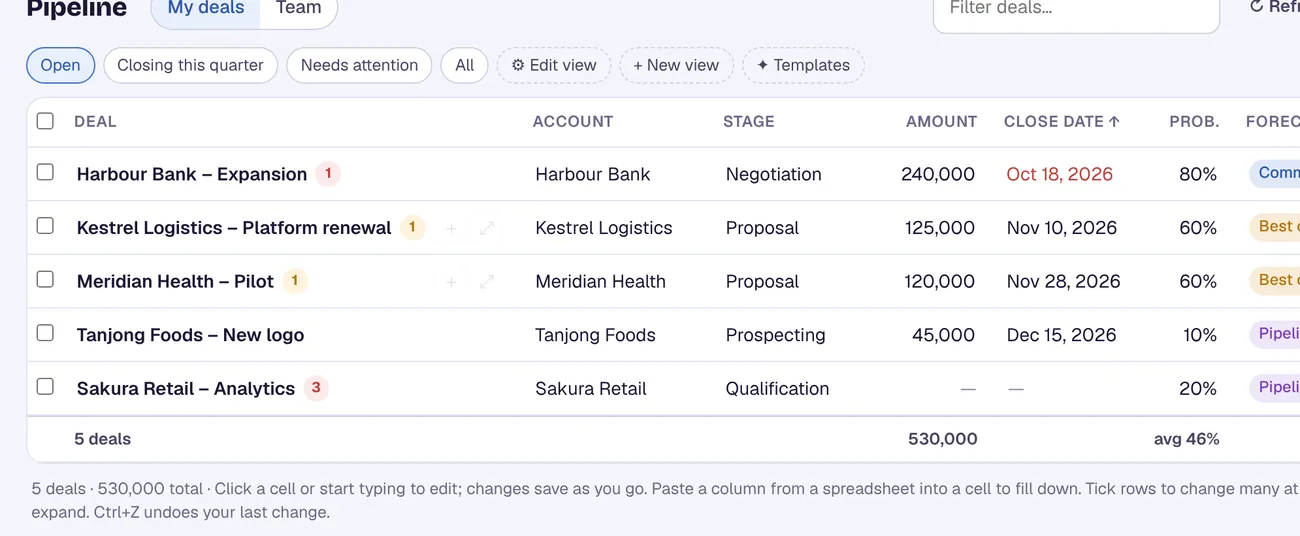
Your pipeline loads from Salesforce, ready to edit.
Your Salesforce user needs the "API Enabled" permission, which comes with Enterprise, Unlimited, Performance and Developer editions. CRM Assist works with your own permissions and never deletes records.
More Salesforce guides
Where these steps come from
Checked against the vendors' own help pages and other published guides on 31 October 2026. Menus and button labels change between releases, so if your screen differs, trust your screen and your admin.
Questions
Is it safe to let an AI update my CRM?
It can be, if you keep approval on, start with one record and read each change. No AI is error-free. Treat every AI edit like an edit from a new colleague.
Can I use Claude and CRM Assist together?
Yes. CRM Assist can also be connected to Claude if you prefer to chat there (the "Advanced: use your own AI" option in the app). Meera is the built-in assistant for people who do not want to set that up.
Does CRM Assist have a limit on AI use?
Yes. Meera has a daily fair-use limit. After it, the editable grid and quick commands still work, and the limit resets at midnight UTC.
Does CRM Assist change anything in my Salesforce setup?
No. Nothing is installed in Salesforce. CRM Assist reads and writes opportunities through Salesforce's API with your own login and permissions, and it never deletes records.
crm assist
The AI help, with a safety net.
CRM Assist shows every AI change before it saves, lets you undo it, and works on your Salesforce pipeline in an editable grid. 14-day free trial, no credit card, then US$9.90 per user per month. Cancel any time.