crm assistfor Salesforce
Step-by-step guide · Salesforce
How to move Salesforce opportunities between stages with the Kanban view
Want to see your pipeline as columns and drag deals forward? Here is how to turn on the Kanban view for opportunities in Salesforce, move a deal, and change what the board shows.
Try CRM Assist freeShow me the steps
- 6 steps
- 4 min read
- 14-day free trial, no card
- Updated 30 October 2026
✓ Saved to Salesforce
The Kanban view turns an opportunity list view into a board. Each column is a stage, each card is a deal, and you move a deal by dragging it. It is the quickest way to change stage, and it changes nothing else about the deal.
Before you start
- Salesforce Lightning Experience. The steps are the ones Salesforce Trailhead shows for Lightning.
- Permission to edit opportunities. You can only move deals you are allowed to edit.
- A list view of the deals you care about. The board shows whatever the list view contains.
The steps
Open the Opportunities tab
Select Opportunities in the navigation bar.
Choose a list view
Pick the list view you want to see as a board. Salesforce's own walkthrough uses All Opportunities. A view filtered to your open deals gives a cleaner board.
Switch the display to Kanban
Use the Select list display dropdown and choose Kanban.
Read the board
By default the columns are the opportunity Stage. Each column shows the total Amount of its deals. Use Show filters and Show charts to narrow the board or see a chart.
Qualified9,800
Orbit Labs9,800Proposal64,500
Kestrel Foods48,000Northwind Ltd16,500Negotiation240,000
Harbour Bank240,000Stages as columns, with each column's total. (Illustration, not a screenshot.) Drag a deal to another stage
Click a deal card, hold the mouse button, drag it into another column and let go. The deal's stage changes to that column.
Proposal16,500
Northwind Ltd16,500Negotiation288,000
Harbour Bank240,000Kestrel Foods48,000Kestrel Foods dropped into Negotiation. (Illustration.) Watch out. The sources we checked don't say what happens when you drop a deal into a closed stage, or whether required fields can block a move. Try it on one deal first, and ask your Salesforce admin about validation rules if a move is refused.
Change what the board shows
Open List View Controls, choose Kanban Settings, and change Summarize By (the number each column adds up, such as Expected Revenue) or Group By (the field that makes the columns). Click Save.
If it doesn't work
I don't see Kanban in the display menu
The sources we checked don't say why it might be missing. Ask your Salesforce admin whether the Kanban view is available for the list view you are using.
A deal won't move
Salesforce may refuse a move if your org requires certain fields or has validation rules for that stage. The sources we checked don't describe this, so ask your admin.
The columns aren't stages
Open List View Controls, then Kanban Settings, and check the Group By field.
I can only change the stage this way
Yes. To change amount, close date or next step you still open the deal, or use a list view or a tool such as CRM Assist.
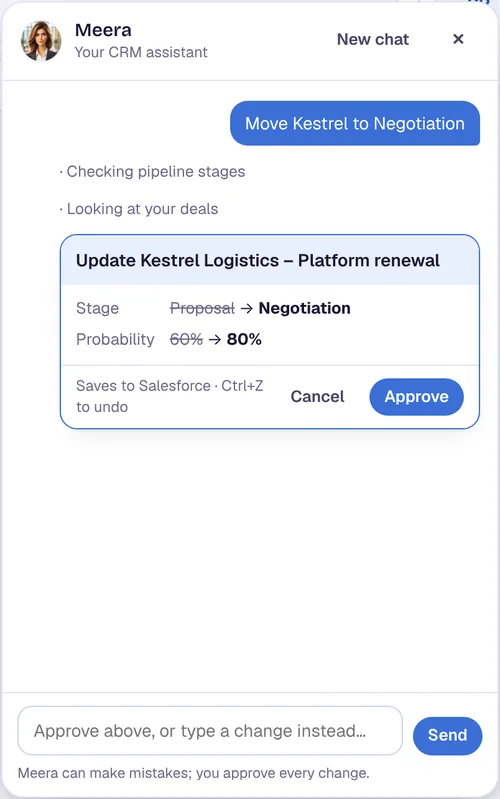
Or do it in CRM Assist (about 2 minutes to set up)
Add the free Chrome extension
It works in Chrome and Edge on your computer. Nothing is installed in Salesforce.
Pick the Salesforce login you already have
The extension finds it. If you are signed out, your company's own Salesforce sign-in opens, so single sign-on works.
Confirm your email and start
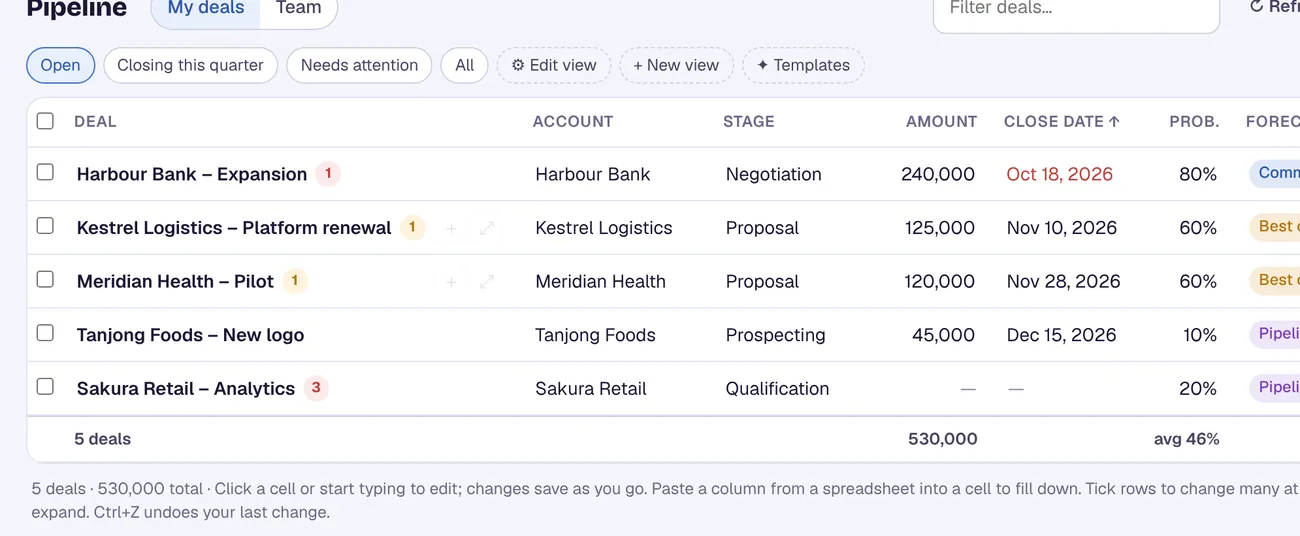
Your pipeline loads from Salesforce, ready to edit.
Your Salesforce user needs the "API Enabled" permission, which comes with Enterprise, Unlimited, Performance and Developer editions. CRM Assist works with your own permissions and never deletes records.
More Salesforce guides
Where these steps come from
Checked against the vendors' own help pages and other published guides on 30 October 2026. Menus and button labels change between releases, so if your screen differs, trust your screen and your admin.
Questions
Does the Kanban view change anything except the stage?
Dragging a card changes the stage. Other fields, such as amount or close date, are changed on the deal or in a list view.
Can I make the Kanban columns something other than stages?
Yes. In Kanban Settings you can change the Group By field. Salesforce's own example groups by Type.
What do the column totals add up?
By default, the Amount of the deals in the column. You can change this under Summarize By in Kanban Settings.
Does CRM Assist change anything in my Salesforce setup?
No. Nothing is installed in Salesforce. CRM Assist reads and writes opportunities through Salesforce's API with your own login and permissions, and it never deletes records.
crm assist
Your board and your grid, in one place.
CRM Assist shows your Salesforce pipeline as a board and as an editable grid, with an AI assistant on top. 14-day free trial, no credit card, then US$9.90 per user per month. Cancel any time.