crm assistfor Salesforce
Step-by-step guide · Salesforce
How to mass update Salesforce opportunities: step by step
Need to move 20 deals to a new close date before the forecast call? Here is how to change many Salesforce opportunities at once from a list view, what stops it from working, and how to skip the clicks.
Try CRM Assist freeShow me the steps
- 6 steps
- 5 min read
- 14-day free trial, no card
- Updated 30 October 2026
✓ Saved to Salesforce
Salesforce lets you change the same field on several records at once, straight from a list view, without opening each opportunity. It takes about two minutes once the list view is set up. The steps below are for Lightning Experience.
Before you start
- Inline editing and Enhanced Lists are switched on. An admin controls this in Setup, under User Interface. If you never see a pencil icon when you hover over a field, ask your admin.
- A list view that holds only the deals you mean to change. A mass update changes every record you tick, so a filtered view is your safety net.
- One record type at a time. If your org uses record types, the list view needs to contain a single record type.
- Permission to edit the field. A lock icon next to a field means it can't be edited this way.
The steps
Open your opportunities and pick a list view
Go to Opportunities and choose the list view that holds the deals. A good one for a weekly update is a view of your own open deals closing this quarter. If you don't have one, create a list view and add filters for the deals you want to change.
Tip. Show the columns you are about to edit (stage, amount, close date, next step) so you can see the result straight away.
Limit the view to one record type
If your company uses record types, add the filter Record Type equals and pick one. Salesforce only applies a mass change cleanly when the selected records share a record type, so do mixed record types in separate rounds.
Tick the deals you want to change
Use the checkboxes on the left of each row. The checkbox in the header selects the whole page.
Opportunity Stage Amount Close date Kestrel Foods Proposal 48,000 30 Nov Harbour Bank Negotiation 240,000 15 Dec Northwind Ltd Proposal 16,500 12 Nov Orbit Labs Qualified 9,800 20 Nov Two deals ticked. (Illustration, not a screenshot.) Double-click the field you want to change
Hover over the field first. A pencil means you can edit it here. A lock means you can't. Double-click an editable field to open the editor.
Watch out. Some fields never edit inline, such as long text areas. For those, open the record or use another method.
Type the new value for all selected deals
Enter the new value, then choose the option that applies the change to all the records you ticked. If you skip that option, only the one row you double-clicked changes.
Opportunity Stage Amount Close date Kestrel Foods Proposal 48,000 15 Dec Harbour Bank Negotiation 240,000 15 Dec Northwind Ltd Proposal 16,500 12 Nov Orbit Labs Qualified 9,800 20 Nov New close date typed, with the option to apply it to every ticked deal. (Illustration.) Tip. Each double-click edits one field. To change stage and close date, repeat steps 4 and 5 for each field.
Save and check the list
Click Save. Then scan the list: are the new values on every ticked row? Did any rows you meant to change stay the same? Fix stragglers on their record page.
If it doesn't work
I never see a pencil icon
Inline editing may be switched off for your org or the view. An admin enables Enhanced Lists and Inline Editing under User Interface in Setup.
The field has a lock icon
That field can't be edited inline. Common causes are a long text area field, or a field your user isn't allowed to edit. Open the record to change it, or ask your admin about the permission.
The change only applied to one row
Make sure the rows were ticked before you double-clicked, and that you chose the option to apply the change to all selected records.
The change won't apply to all my deals
The selected deals probably have different record types. Filter the list view to one record type and do each type in its own round.
I have hundreds of records to change
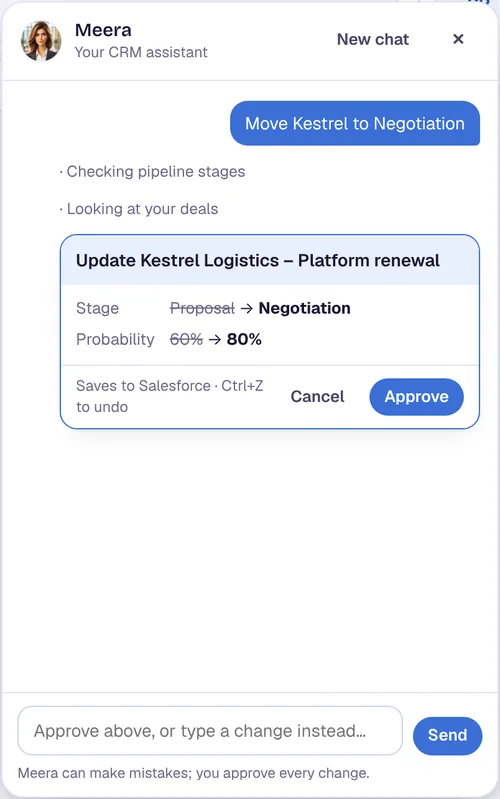
A list view is meant for dozens, not thousands. For big clean-ups admins use Data Loader, and for your weekly pipeline a tool such as CRM Assist is quicker.
Or do it in CRM Assist (about 2 minutes to set up)
Add the free Chrome extension
It works in Chrome and Edge on your computer. Nothing is installed in Salesforce.
Pick the Salesforce login you already have
The extension finds it. If you are signed out, your company's own Salesforce sign-in opens, so single sign-on works.
Confirm your email and edit
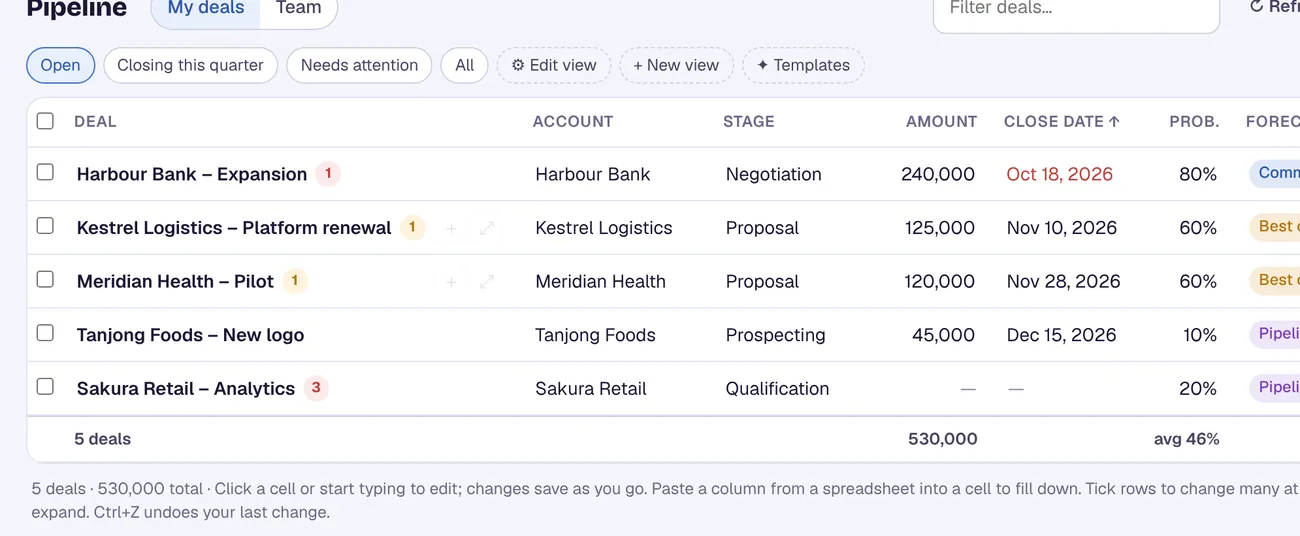
Your pipeline loads from Salesforce. Click a cell and type, or paste a column of new close dates or stages from a spreadsheet.
Your Salesforce user needs the "API Enabled" permission, which comes with Enterprise, Unlimited, Performance and Developer editions. CRM Assist works with your own permissions and never deletes records.
More Salesforce guides
Where these steps come from
Checked against the vendors' own help pages and other published guides on 30 October 2026. Menus and button labels change between releases, so if your screen differs, trust your screen and your admin.
Questions
Can I mass update opportunities that have different record types?
Not in one go from a list view. Filter the view to one record type, update those, then repeat for the next.
How many records can I update at once in a list view?
The sources we checked don't state a limit, so we can't give you a number. Check Salesforce's help for your edition, or start with small batches.
Can I undo a mass update?
Check the values before you click Save, because we haven't verified an undo for list view edits. In CRM Assist you can press Ctrl+Z to undo a change you made in its grid.
Does CRM Assist change anything in my Salesforce setup?
No. Nothing is installed in Salesforce. CRM Assist reads and writes opportunities through Salesforce's API with your own login and permissions, and it never deletes records.
crm assist
Stop clicking through list views.
CRM Assist puts your whole Salesforce pipeline in one fast, editable grid with an AI assistant on top. 14-day free trial, no credit card, then US$9.90 per user per month. Cancel any time.