crm assistfor HubSpot
Step-by-step guide · HubSpot
How to import deals into HubSpot from a spreadsheet
Got a spreadsheet of deals? Here is how to bring them into HubSpot, or update the ones already there, and what to check before you click Finish.
Try CRM Assist freeShow me the steps
- 7 steps
- 6 min read
- 14-day free trial, no card
- Updated 30 October 2026
✓ Saved to HubSpot
HubSpot's import tool can create new deals, update existing ones, or both, from a file or from data you paste. Updating needs a unique identifier, and for deals that is the Record ID.
Before you start
- Import permission and permission to edit deals. HubSpot lists both.
- A spreadsheet or CSV with one row per deal and a header row. For exact file rules, HubSpot points to its "set up import files" article, which we did not read.
- A Record ID column if you are updating existing deals. HubSpot says deals have no other unique identifier.
The steps
Prepare your file
Put one deal per row, with column headers. To update existing deals, include a Record ID column. To create new deals, make sure the file has the properties HubSpot requires for deals (check HubSpot's import-file article for the list).
Open the import tool
Click Import on the deals page, or go to Data Management > Data Integration (under More if it appears in your account).
Choose deals
In the Import a file section, click Import data, then Advanced imports (all objects). Select deals and click Next.
Pick the import type
Choose Create and update deals, Create new deals only, or Update existing deals only. Creating needs the required properties in the file. Updating needs a unique identifier.
Upload or paste your data
Upload your file, or paste data copied from a spreadsheet app such as Google Sheets. If your column headers are in a language other than your default, pick it in the header-language dropdown. Click Next.
Map your columns
Map the unique identifier first: for deals, use Record ID. Rows without a Record ID value create new deals. Then map each column to a HubSpot Property. For any column you can choose an existing property, create a custom property, set Don't import column, or select Don't overwrite to protect existing data.
Your column HubSpot property Import as Deal Deal name Map Stage Deal stage Map Value Amount Map Notes (none) Don't import Mapping columns to properties. (Illustration, not a screenshot.) Name it and finish
Enter an import name and tick the consent box. Set the date and time format and time zone for date properties, and the number format for number properties. Click Finish import. The review page shows the status and an estimated completion time.
If it doesn't work
My import shows errors
HubSpot points to its import troubleshooting article. Check the mapping and the required properties first.
It created duplicate deals
Rows without a Record ID value create new deals. To update, include the Record ID for every row you want updated.
I overwrote data I wanted to keep
Next time select Don't overwrite for that property in the mapping step.
I can't update notes, meetings or tasks
HubSpot says emails, meetings, notes and tasks can't be updated through import.
Or do it in CRM Assist (about 2 minutes to set up)
Sign in with HubSpot
Go to the CRM Assist HubSpot sign-in. No extension is needed. Installing for your account needs a HubSpot super admin or the App Marketplace Access permission.
Approve what CRM Assist can access
You review the permissions and click Connect app. Your 14-day free trial starts, no credit card needed.
Start editing
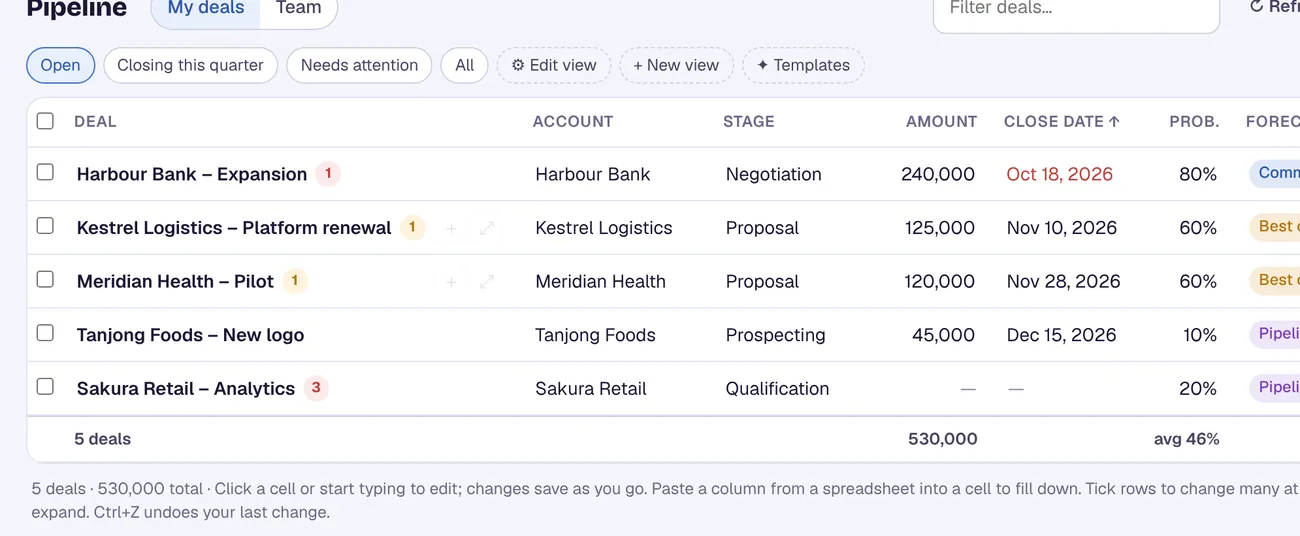
Your deals load from HubSpot, ready to edit.
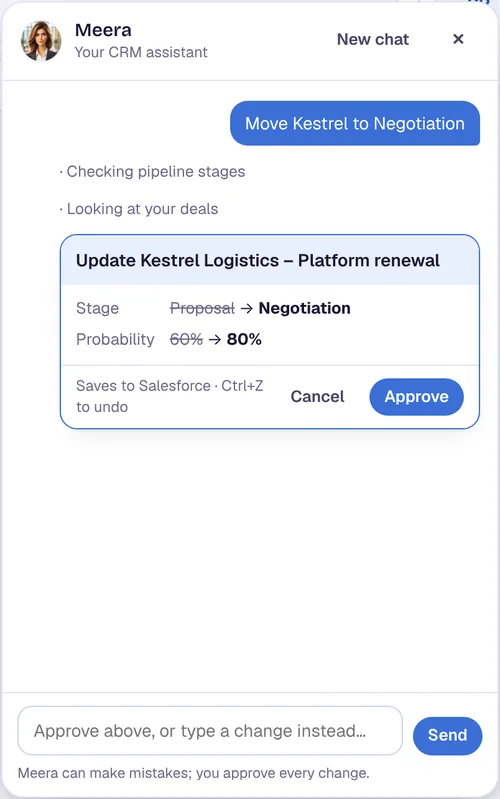
CRM Assist works with your own HubSpot permissions, and every change is saved straight to HubSpot.
More HubSpot guides
Where these steps come from
Checked against the vendors' own help pages and other published guides on 30 October 2026. Menus and button labels change between releases, so if your screen differs, trust your screen and your admin.
Questions
What identifier do I use to update deals?
The Record ID. HubSpot says deals have no other unique identifier, and a Record ID overrides any other identifier in your file.
Can I link imported deals to companies or contacts?
The page we read mentions an association option but doesn't explain it, so check HubSpot's help for associations.
What permissions do I need?
HubSpot lists Import permissions and Edit permissions for deals.
crm assist
Update your deals without a spreadsheet round trip.
CRM Assist lets you paste a column of changes straight onto your HubSpot pipeline, with an AI assistant on top. 14-day free trial, no credit card, then US$9.90 per user per month. Cancel any time.