crm assistfor HubSpot
Step-by-step guide · HubSpot
How to bulk edit deals in HubSpot: step by step
Need to change the same property on a batch of HubSpot deals? Here is how to bulk edit them from the deals table, what happens to the old values, and how to skip the dialog.
Try CRM Assist freeShow me the steps
- 6 steps
- 4 min read
- 14-day free trial, no card
- Updated 30 October 2026
✓ Saved to HubSpot
HubSpot lets you select several deals and change one property for all of them in a single action. It works from the table view of your deals.
Before you start
- A HubSpot account with deals. HubSpot's help page says the article applies to any HubSpot product and plan, except where it notes otherwise.
- A view that holds the deals you mean to change. Filter first, so you don't select the wrong ones.
- Table view. The steps below use the table. HubSpot has a separate section for the board view.
The steps
Open your deals
Go to CRM, then Deals. If you see a More menu first, open it and choose CRM, then Deals.
Apply a view
Optionally pick a saved view, or add filters, so the table shows just the deals you want to edit.
Select the deals
Tick the checkboxes next to the deals. The checkbox at the top left selects everything on the page, and HubSpot then offers a Select all link for every record in the view.
Deal name Deal stage Amount Close date Kestrel Foods Proposal 48,000 30 Nov Harbour Bank Negotiation 240,000 15 Dec Northwind Ltd Proposal 16,500 12 Nov Orbit Labs Qualified 9,800 20 Nov Three deals selected. (Illustration, not a screenshot.) Choose Edit
At the top of the table, choose Edit. A dialog opens.
Pick the property and the new value
Open the Property to update dropdown and choose a property, then enter or choose the value. For text and single-select properties, the new value overwrites the old one on every selected deal. For multi-select properties you choose whether to append to, replace or remove from the current values.
Watch out. Overwriting is silent. Double-check the property and the selection before you continue.
Click Update and check the table
Click Update, then look over the table to confirm the new value is on every selected deal.
Tip. The same Edit menu has other actions, such as Assign (change the deal owner) and Create tasks. Tasks are created only for deals on the current page.
If it doesn't work
I can only edit one property at a time
Yes: the dialog asks for one property and one value. Repeat steps 3 to 6 for each property.
I overwrote the wrong value
For text and single-select properties, the new value replaces the old one. The help page we checked doesn't describe an undo, so edit the deals again with the right value.
Tasks were only created for some deals
HubSpot creates tasks only for deals on the current page, even when all records are selected.
Or do it in CRM Assist (about 2 minutes to set up)
Sign in with HubSpot
Go to the CRM Assist HubSpot sign-in. No extension is needed. Installing for your account needs a HubSpot super admin or the App Marketplace Access permission.
Approve what CRM Assist can access
You review the permissions and click Connect app. Your 14-day free trial starts, no credit card needed.
Edit your pipeline
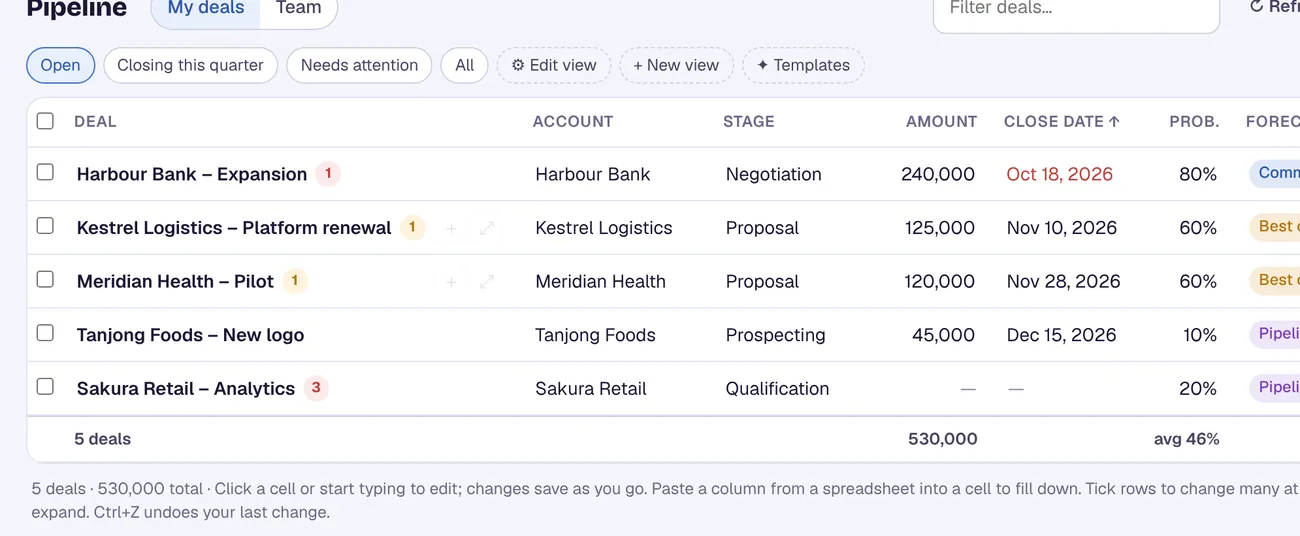
Your deals load from HubSpot. Click a cell and type, tick rows to change many deals at once, or paste a column from a spreadsheet.
CRM Assist works with your own HubSpot permissions, and every change is saved straight to HubSpot.
More HubSpot guides
Where these steps come from
Checked against the vendors' own help pages and other published guides on 30 October 2026. Menus and button labels change between releases, so if your screen differs, trust your screen and your admin.
Questions
Is there a limit to how many HubSpot deals I can bulk edit?
The help page we checked doesn't state a general limit for editing or assigning, so we can't give you a number. Adding records to a static segment is limited to 100 at a time.
Can I bulk edit deals on the board view?
HubSpot has a separate section for the board view; see its help page. These steps are for the table view.
crm assist
Edit HubSpot deals at the speed of a spreadsheet.
CRM Assist puts your HubSpot pipeline in one fast, editable grid with an AI assistant on top. 14-day free trial, no credit card, then US$9.90 per user per month. Cancel any time.