crm assistfor HubSpot
Step-by-step guide · HubSpot
How to customize your HubSpot deal stages
Your sales process isn't HubSpot's default. Here is how to add, rename and reorder deal stages, set the probability for each, and avoid the Won and Lost mistake that breaks reports.
Try CRM Assist freeShow me the steps
- 6 steps
- 5 min read
- 14-day free trial, no card
- Updated 30 October 2026
✓ Saved to HubSpot
A HubSpot pipeline is a list of deal stages. You can change the stages to match how you really sell, and each stage carries a probability that HubSpot uses for weighted amounts and forecasts.
Before you start
- The "Edit property settings" permission. HubSpot says you need it to edit stages.
- Time to talk to your team. Changing stages affects everyone who uses the pipeline, so agree the new stages first.
- Won and Lost stages. HubSpot says deals need stages for both so reports process them correctly. Keep them.
The steps
Open the settings
Click the settings icon in the top navigation bar.
Go to the deals pipelines
In the left sidebar, under Data Management, click Objects. Use the Select an object dropdown to choose Deals, then click the Pipelines tab.
Open the pipeline
Click the name of the pipeline you want to edit.
Add, rename or reorder stages
Click + Add stage under the existing stages and enter a name. To rename a stage, click its name and type a new one. To reorder, drag a stage to a new position. You can also give each stage a colour.
Set the deal probability
For each stage, open the Deal probability dropdown and pick a probability. For a custom one, enter a value, click Add option, then select it. HubSpot multiplies each stage's total amount by its probability to get the weighted amount in the board view.
Watch out. Include stages for both Won and Lost. HubSpot says you must, so that sales reports, custom deal or revenue reports and sales analytics process your deals correctly.
Save
Click Save in the bottom left when you are done.
If it doesn't work
I can't edit the pipeline
You need the "Edit property settings" permission. Ask a super admin for it.
I can't delete a stage
In the Used in column, click the number to see what blocks deletion, such as deals in the stage or conditional properties that use it. Remove those references first, then use the delete icon.
I added an e-commerce integration and see a pipeline I can't change
HubSpot says that when you connect an e-commerce integration, it adds a deal pipeline you cannot modify.
What happens to deals in a stage I delete?
The help page we checked doesn't say beyond the blocking references. Move the deals to another stage first.
Or do it in CRM Assist (about 2 minutes to set up)
Sign in with HubSpot
Go to the CRM Assist HubSpot sign-in. No extension is needed. Installing for your account needs a HubSpot super admin or the App Marketplace Access permission.
Approve what CRM Assist can access
You review the permissions and click Connect app. Your 14-day free trial starts, no credit card needed.
Start editing
Your deals load from HubSpot, ready to edit.
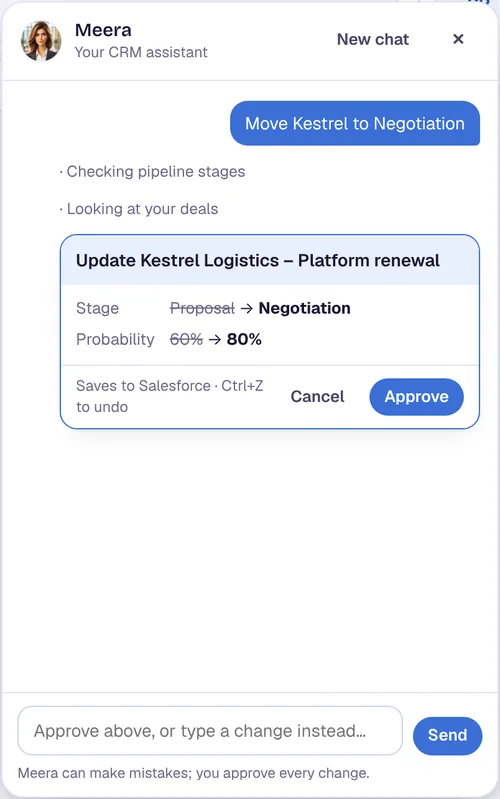
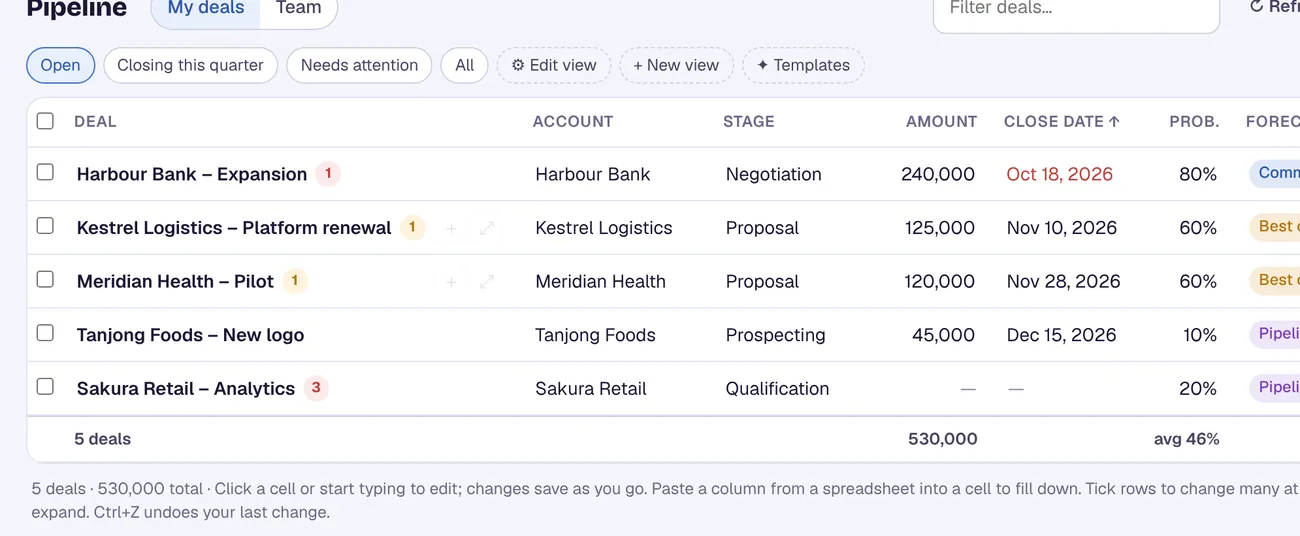
CRM Assist works with your own HubSpot permissions, and every change is saved straight to HubSpot.
More HubSpot guides
Where these steps come from
Checked against the vendors' own help pages and other published guides on 30 October 2026. Menus and button labels change between releases, so if your screen differs, trust your screen and your admin.
Questions
What is deal probability used for?
HubSpot uses it for the weighted amount in the board view: each stage's total amount multiplied by its probability.
Do I need Won and Lost stages?
Yes. HubSpot says deals must include stages for both, so sales reports and analytics process your deals correctly.
Where are the stages' internal names?
Hover over a stage and click the internal name icon. Integrations and APIs use that name.
crm assist
Run your pipeline without the settings maze.
CRM Assist puts your HubSpot pipeline in one editable grid, with an AI assistant, using the stages you already have. 14-day free trial, no credit card, then US$9.90 per user per month. Cancel any time.