crm assistfor Dynamics 365
Step-by-step guide · Dynamics 365
How to create a personal view of your opportunities in Dynamics 365 Sales
The standard views never match the deals you work. Here is how to build your own in Dynamics 365 Sales, with the columns and filters you need, saved for next time.
Try CRM Assist freeShow me the steps
- 6 steps
- 5 min read
- 14-day free trial, no card
- Updated 30 October 2026
✓ Saved to Dynamics 365
A personal view is your own saved version of a list: your columns, your filters. Only you see it unless you share it. Microsoft's page gives the outline (open a view, change the columns and filters, save it, share it if you want), and the click-by-click below comes from a partner guide that uses another table as its example.
Before you start
- Dynamics 365 Sales. Menu names can differ a little between app versions.
- A system or public view to start from. Personal views are based on one.
- Nothing from your admin. Personal views are yours to make. Creating system or public views is an admin job.
The steps
Open the opportunities table
Open the Opportunities list in your Dynamics 365 Sales app.
Start from an existing view
Use the view dropdown at the top left and pick the system view closest to what you want.
Choose your columns
Click Edit columns on the right. Use + Add columns to pick the fields you update, drag them into order, and click Apply.
Topic Est. revenue Est. close date Status Kestrel Foods 48,000 30 Nov Open Harbour Bank 240,000 15 Dec Open Northwind Ltd 16,500 12 Nov Open Orbit Labs 9,800 20 Nov Open Your columns, in your order. (Illustration, not a screenshot.) Add filters
Click Filters. Add a condition by choosing a field, an operator and a value (for example, a status or stage condition), and add more conditions if you need them. Click Apply to update the view.
Save it as a new view
In the view dropdown, click Save As New View, give it a name such as "My open deals", and click Save.
Make it your default
Select your new view, then click Set as Default View. The table now opens to it.
Tip. To change it later, open the view, adjust the columns, filters or sorting and click Save Changes to Current View. To delete or share it, use Manage and Share Views in the dropdown.
If it doesn't work
I can't see "Save As New View"
Menu names can differ between app versions. Look in the view dropdown first. If you still can't find it, your security role may not allow personal views, so ask your admin.
Can I turn my personal view into a shared one for everyone?
Microsoft says you can't convert a personal view into a system or public view. You can share it with other users, and an admin can build a system or public view in Power Apps.
My teammates can't see the view
A personal view is visible only to you unless you share it. Use Manage and Share Views.
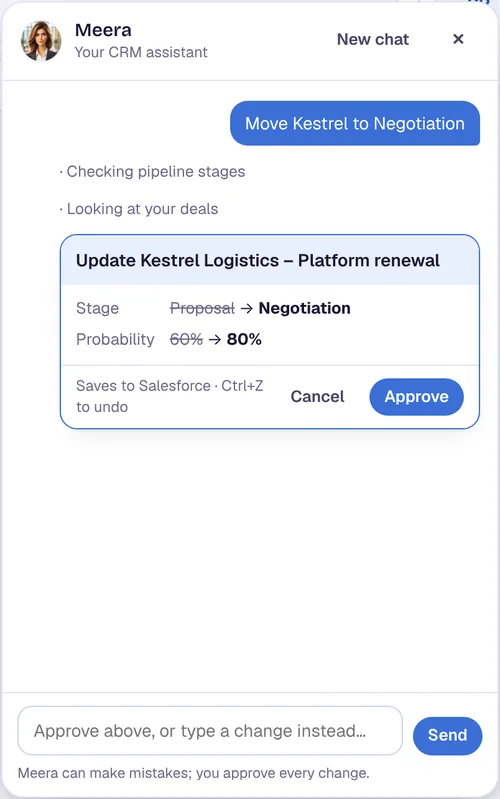
Or do it in CRM Assist (about 2 minutes to set up)
Sign in with Microsoft
Use the Microsoft account you already use for Dynamics 365. No extension is needed.
Approve CRM Assist if your company asks
If your company requires approval for new apps, a Microsoft admin approves CRM Assist once.
Start editing
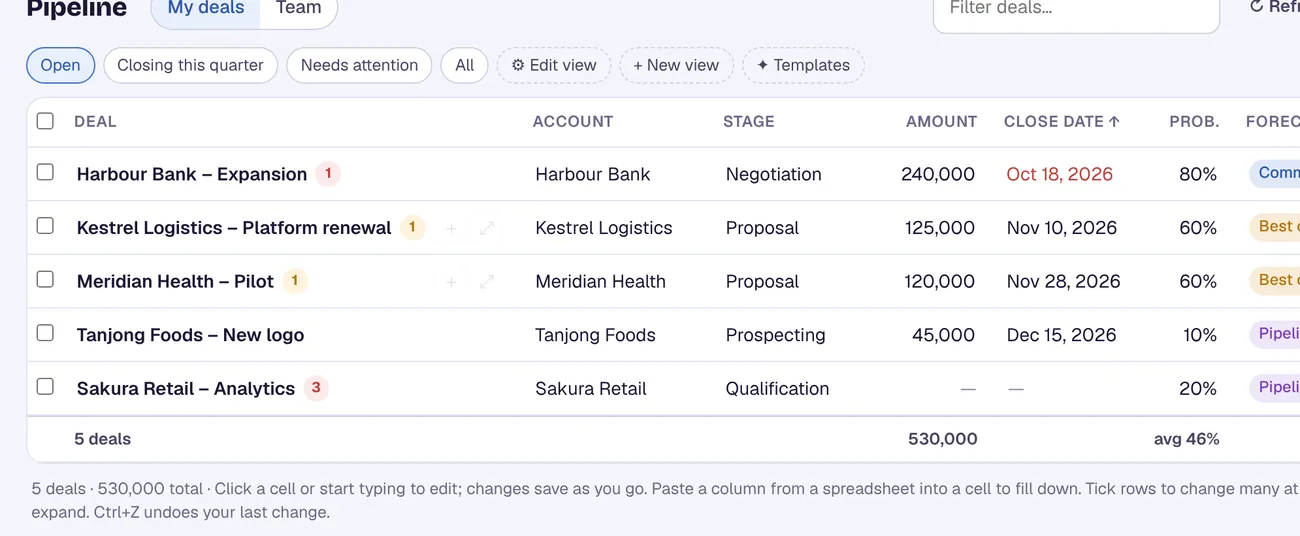
Your opportunities load from Dynamics 365, ready to edit.
CRM Assist works with your own permissions, and every change is saved straight to Dynamics 365. Nothing is installed in your Dynamics 365 environment.
More Dynamics 365 guides
Where these steps come from
Checked against the vendors' own help pages and other published guides on 30 October 2026. Menus and button labels change between releases, so if your screen differs, trust your screen and your admin.
Questions
Who can see my personal view?
Only you, unless you share it. Microsoft says personal views can be shared with other users.
Can I make a personal view the table's default?
Yes: select it and click Set as Default View, according to the partner guide we used.
Can I turn a personal view into a public view?
No. Microsoft says you can't convert a personal view into a system or public view.
Does CRM Assist need an admin to install anything in Dynamics 365?
No. You sign in with Microsoft. If your company requires approval for new apps, a Microsoft admin approves CRM Assist once.
crm assist
Your pipeline, already the way you want it.
CRM Assist opens your Dynamics 365 pipeline in one editable grid, with saved views, so there is nothing to set up. 14-day free trial, no credit card, then US$9.90 per user per month. Cancel any time.